OpenCode
This guide explains how to configure OpenCode [https://opencode.ai/es] to use LLM models served from the SCAYLE LLM Portal (OWUI), through the local proxy that handles authentication with Ivanti.
You need to have the following ready:
- SCAYLE username and password.
- TOTP configured, with the 6-digit SCAYLE code.
- API token from the LLM Portal (OWUI) [guide to obtain the API token].
You can install WSL in two ways:
- From PowerShell:
wsl --install- From the Microsoft Store, by installing a distribution such as Ubuntu.
Once WSL is installed, open the Ubuntu terminal and continue with the installation steps for Ubuntu.
Install openconnect:
sudo apt update
sudo apt install openconnectFrom VS Code, open an Ubuntu / WSL terminal.
- Install the official OpenCode package:
curl -fsSL https://opencode.ai/install | bash- Then create the configuration file:
mkdir -p ~/.config/opencode
nano ~/.config/opencode/opencode.json
Add a configuration like this:
Replace
sk-YOUR_TOKEN_HEREwith your API key [guide on how to obtain it] from the SCAYLE LLM Portal (OpenWebUI).
{
  "$schema": "https://opencode.ai/config.json",
  "plugin": [
    "opencode-models-discovery@latest"
  ],
  "provider": {
    "scayle": {
      "npm": "@ai-sdk/openai-compatible",
      "name": "SCAYLE LLM",
      "options": {
        "baseURL": "http://127.0.0.1:8080/api",
        "apiKey": "sk-YOUR_TOKEN_HERE",
        "modelsDiscovery": {
          "enabled": true
        }
      }
    }
  }
}- Define an environment variable for the LLM Portal (OWUI) token:
export OWUI_TOKEN="sk-TU_TOKEN_AQUI"- Download the following set of scripts:
- Then enter the folder, grant execution permissions, and run the program:
cd opencode_proxy
chmod +x start_opencode.sh
./start_opencode.sh- Complete the requested information
- SCAYLE username, TOTP, and password.
- Ubuntu / WSL password.
You will see output similar to this:
[+] ✅ Session started
[+] Cookie saved in /home/rgonzalez/.ivanti_dsid
[+] When it expires, run this script again
🚀 Starting proxy at http://127.0.0.1:8080 ...
✅ Proxy running (PID: 2132). Logs: /tmp/opencode_proxy.log

Configure OpenCode:
Base URL: http://127.0.0.1:8080/api
Leave that terminal open. The script will monitor the session automatically.
Once configured, run it in Ubuntu/WSL from the project path:
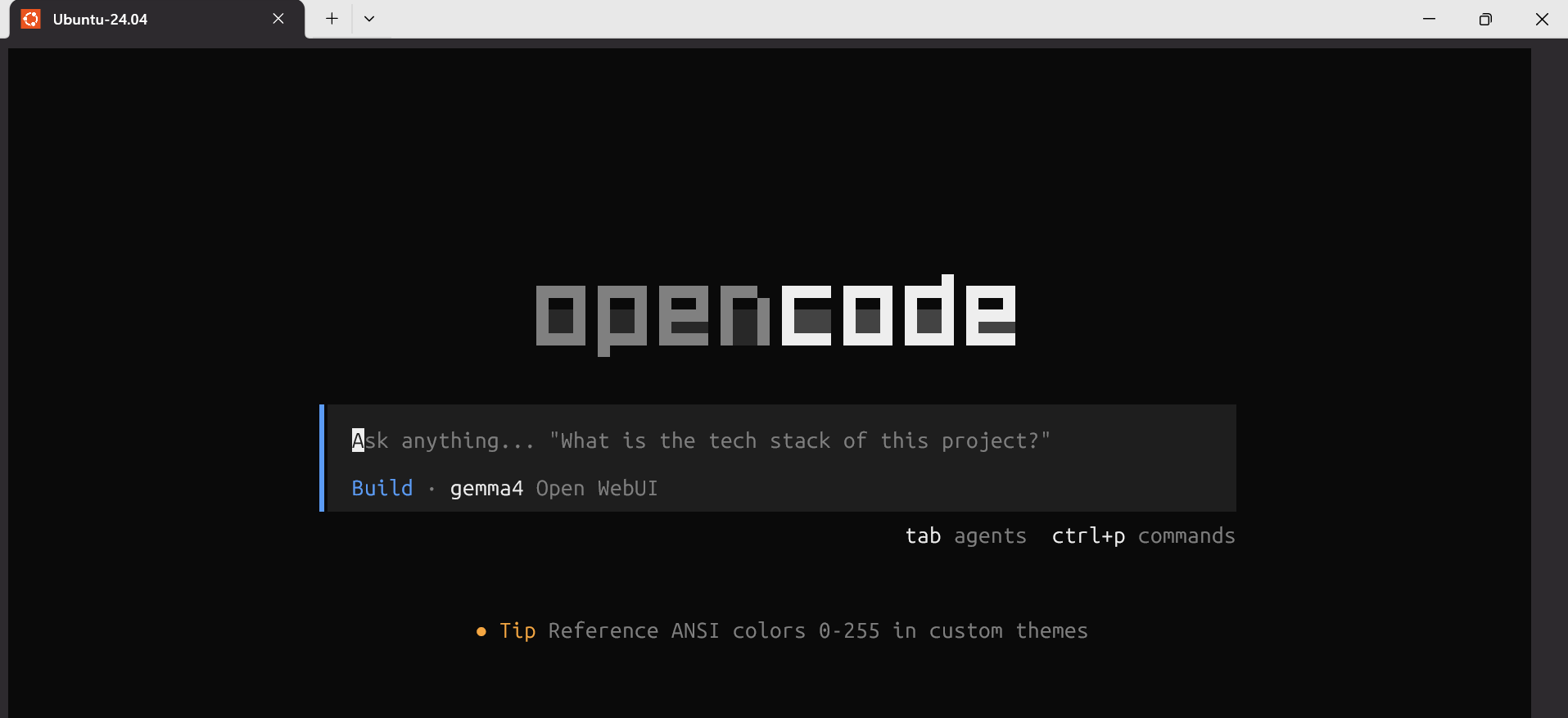
opencodeAn interface will open for interacting with the different models and the specified project:
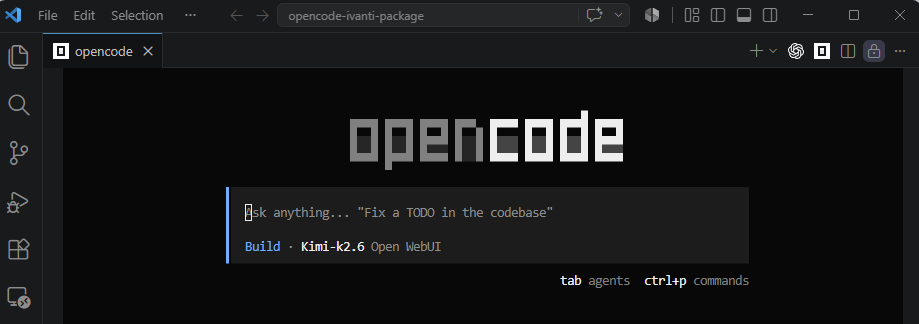
There is an option to deploy this tool directly in VSCode:
- Change the VS Code default profile to WSL using the VS Code command: >Terminal: Select default profile:


- Click the OpenCode icon in VS Code.

- The OpenCode interface will open, and you can begin interacting with the assistant.
Within OpenCode, you can use:
TabTo switch between modes:
planbuild
You can also use:
/modelsTo select the model you want to use.
For example:
Kimi-k2.6GLM-5.3-FlashQwen3.8-Flash-Next